

Daily Gyan |
| Add a Contact Me Page to Blogger BlogSpot Blog [Video Tutorial] Posted: 15 Aug 2008 01:38 PM CDT Blogging is all about connecting with your readers. If you want to be a better blogger, you need to listen to your readers. You need to give them an opportunity to get in touch with you. That's why it is important to have a 'Contact Me' page in your blog. A 'Contact Me' or 'Send Your Feedback' page not only makes your blog look professional, but will also make you understand your readers better, help you in getting a lot of tips from them and ultimately will make you a better blogger in the long run. Unfortunately, a Blogger blogspot blog neither has a Contact-Me page out of the box nor any ready made Contact-Me widgets like the many plugins available in the WordPress arena. But, have you seen our Send Tips page? It has been done using Zoho Creator. In today's post we teach you how to create a similar form for your blog. Read along. To make a Feedback/Contact Me page for your blog, we are going to use Zoho Creator. Though there are multiple options available like response-o-matic, freedback, wufoo and google docs, we are going to use Zoho Creator. Why? Because:
Let's dive right in. Go ahead and watch this video. Visti Zoho Creator and get started. Doubts, questions, queries, suggestions? Post a comment.           |
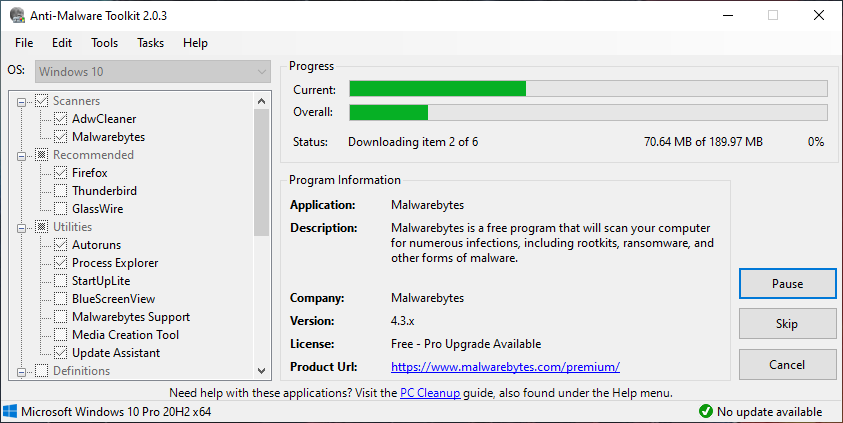
| Easily Create a Malware Fighting Arsenal With Anti-Malware Toolkit Posted: 15 Aug 2008 06:38 AM CDT
The first thing anyone should do after installing Windows is to install an anti-virus program. Then an anti-spyware program. Then a firewall. Then lot many other programs to protect yourself from numerous malwares that are floating around. If this process is too tedious for you, then the program Anti-Malware toolkit is for you. This program is not an anti-malware utility as the name might suggest. But, it is a program that makes downloading all popular anti-malware programs a quick and easy process. It downloads the most latest and greatest versions of all popular security applications like Spybot S&D, HijackThis, Autoruns, CCleaner,Avast, Comodo Firewall etc for you to install. Of course, you can always go to the web sites of these applications and download them your self, but Anti-Malware Toolkit makes it a single-button-click affair. Pros:
Cons:
           |
| Get Live Olympics 2008 Updates From Zoho [Olympics Gyan] Posted: 15 Aug 2008 03:58 AM CDT
The good folks at Zoho, the popular online office suite, have created a Live Olympics 2008 Dashboard which gives you a sneak peak into the latest Olympics results. This has been created exclusively using Zoho technologies like the Zoho DB & Reports and Zoho Wiki.            |
| Duplicating a Firefox Tab the Easy Way [Did You Know] Posted: 15 Aug 2008 01:55 AM CDT
You can easily duplicate a tab in Firefox by holding the Ctrl key while dragging and dropping the tab on the tab bar. The not-so-easy method would be to copy the URL (Ctrl + c), open a new tab (Ctrl + t), paste the URL (Ctrl + v) and hitting enter.            |




| You are subscribed to email updates from Daily Gyan To stop receiving these emails, you may unsubscribe now. | Email Delivery powered by FeedBurner |
Inbox too full?  Subscribe to the feed version of Daily Gyan in a feed reader. Subscribe to the feed version of Daily Gyan in a feed reader. | |
| If you prefer to unsubscribe via postal mail, write to: Daily Gyan, c/o FeedBurner, 20 W Kinzie, 9th Floor, Chicago IL USA 60610 | |


No comments:
Post a Comment
Keep a civil tongue.